
Blur or hide any part of a photo
Draw a box over what you don't want to show, such as a face, a license plate, a shipping label or a competitor's logo, and blur, pixelate or black it out. Or keep the product sharp and blur the background around it.
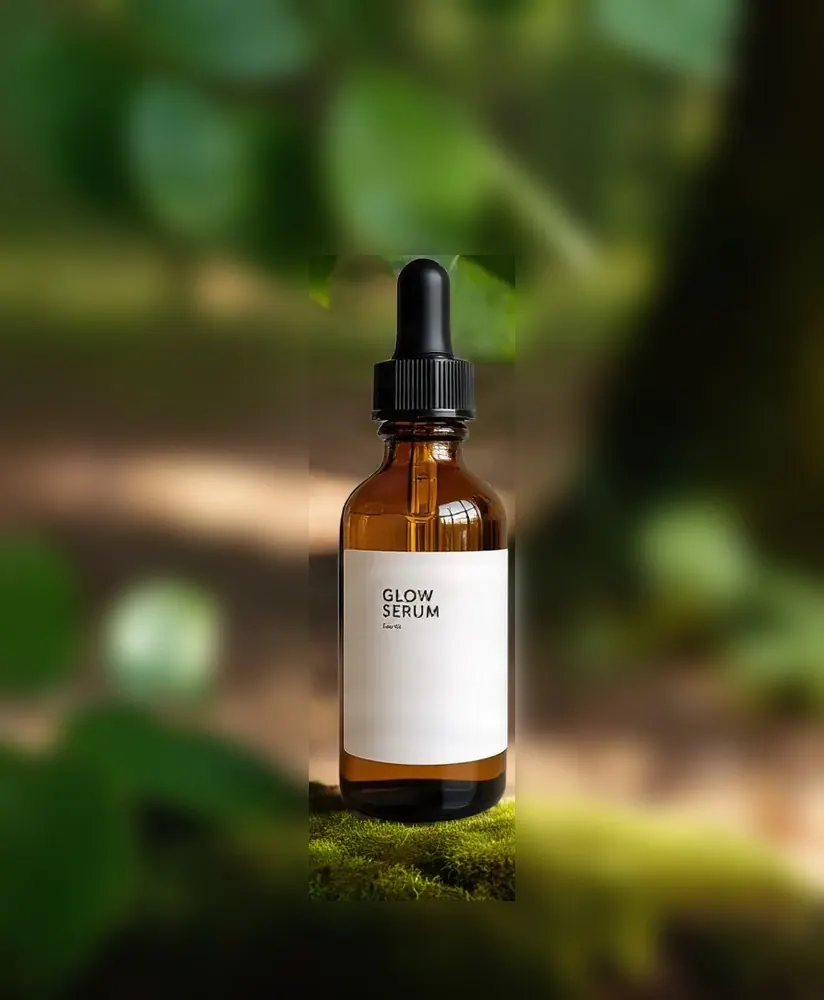
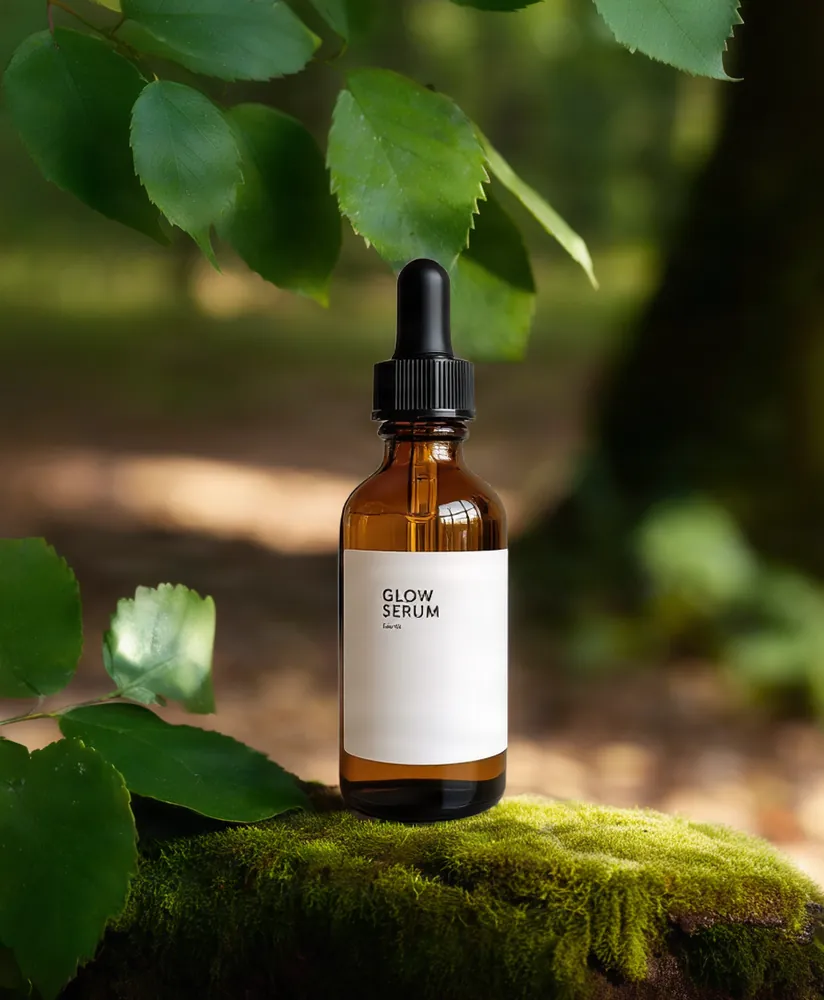 OriginalBackground blurred, product area kept sharp
Blur Image
No sign-up. Your photo never leaves your device.
Drag on the photo to draw an area. Drag an area to move it and drag its corner to resize it. With an area focused, arrow keys move it, Shift + arrow moves faster, Alt + arrow resizes it and Delete removes it. For names, numbers and other sensitive details, use Black box: small pixelated or lightly blurred text can sometimes be read again.
Want the background gone instead of blurred? Remove the background with AI →
Or swap it for a new scene: try the AI background generator →
Everything you need, nothing you don't
Draw any number of areas
Drag on the photo to add a box, then move or resize it.
Blur, pixelate or black box
Pick the effect and set its strength with one slider.
Blur the background
Flip it around: keep the boxes sharp and blur everything else.
Undo and clear
Step back through your changes or remove every box at once.
Full-size download
Save as JPG or PNG at the photo's full resolution.
Private by design
Blurring happens on your device. The photo is never uploaded.
Done in 3 steps
Choose a photo
Drop it in or click to pick one. JPG, PNG, WebP and HEIC work.
Draw boxes
Drag over each area to hide, then pick blur, pixelate or black box.
Download
Save the photo as JPG or PNG at full size.